The Lawyer's Practical Guide to Solon
How to set up and use Solon Desktop and the Microsoft Word companion on Windows for private, local-first legal drafting, contract review, and citation research.
The Local-First Legal Standard
Traditional AI products require uploading your clients' confidential agreements and court filings to third-party cloud servers. Solon operates on a local-first principle: matter files and chat history are kept on your computer. When you request AI work, your prompt and selected or tool-retrieved context pass through the authenticated Solon API to Google. The relay does not persist prompt contents; Google API terms apply.
Setting Up Your Workspace & AI Provider Keys
Install Solon Desktop on your Windows PC. The desktop application is your command center: it manages your active client matters, indexes case documents locally, and runs quietly in the background to assist your drafting in Microsoft Word.
In Solon Desktop, click Create Matter and select any existing folder on your computer (such as Documents\Matters\Acme-Dispute). Solon indexes PDFs, Word documents, and text files within that folder locally on your machine.
Use your own Gemini API key. Follow the Gemini setup guide and review Google's quotas, charges and data-processing terms.
- Google Gemini: configure your own key in Settings. Set up Gemini →
Open Settings to configure Gemini. Word uses the running desktop app and its configured provider.
Solon runs directly as a side panel in Microsoft Word so you can draft, review, and citate without switching windows. Follow the method that best fits your environment:
If your firm uses Microsoft 365, adding Solon via Word on the Web syncs it automatically to your Desktop Word app:
- Open word.new (or Office.com) in your web browser.
- Click Insert ➔ Add-ins (or Apps).
- Click Upload My Add-in in the top-right corner.
- Select the downloaded manifest.xml.
- Solon will appear on your Word ribbon on both the web and your Windows Desktop Word.
Follow these 4 visual steps to configure Windows Word to load Solon locally from a trusted catalog:
1. Create a local folder and save manifest.xml
Download the setup file: manifest.xml (or pre-packaged SolonManifest.zip) and place or extract it inside a folder named C:\SolonManifest.

2. Share the folder on your local network
Right-click C:\SolonManifest ➔ Properties ➔ Sharing tab ➔ Click Share... ➔ Select your Windows username ➔ Click Share. Note the network path generated (e.g., \\YOUR-PC\SolonManifest).
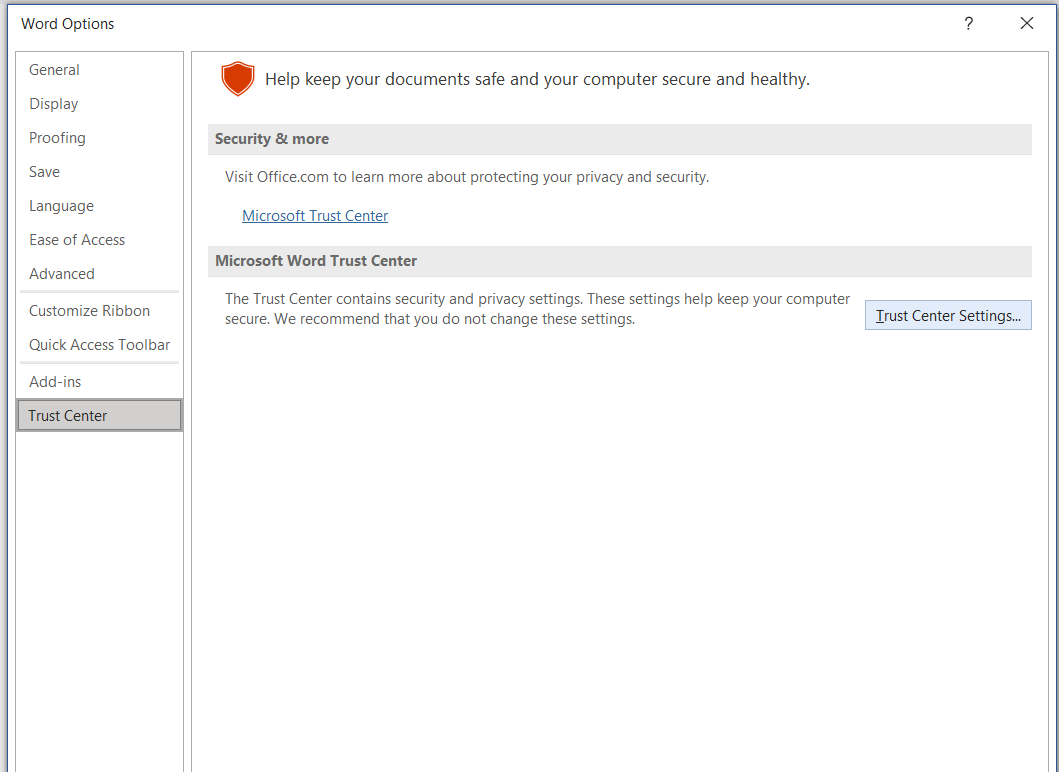
3. Open Word Options and navigate to Trust Center Settings
In Microsoft Word on Windows, go to File ➔ Options ➔ Trust Center ➔ Click the Trust Center Settings... button on the right.
4. Register your Catalog URL and check "Show in Menu"
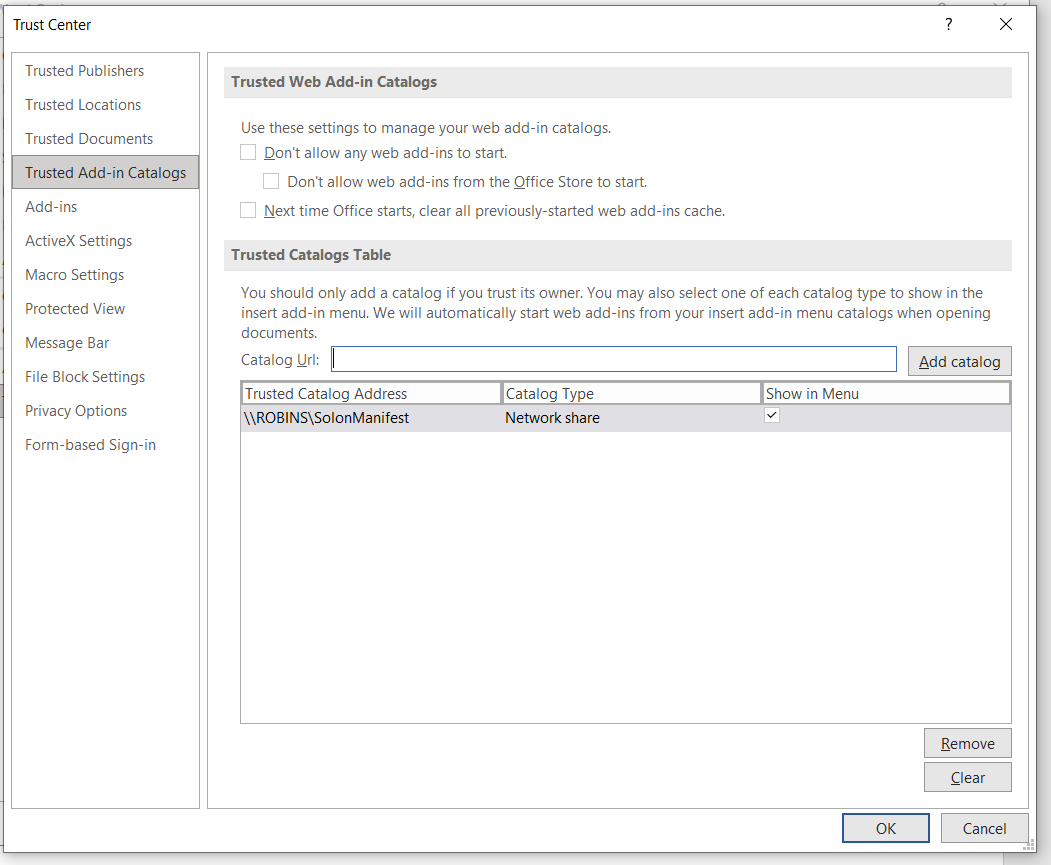
Select Trusted Add-in Catalogs on the left. In the Catalog Url field, paste your network share path (e.g., \\YOUR-PC\SolonManifest), click Add catalog, and ensure the Show in Menu checkbox is ticked. Click OK.
5. Restart Word and Launch Solon
Restart Microsoft Word. Go to Home (or Insert) ➔ Add-ins ➔ SHARED FOLDER tab ➔ Click Add on Solon Legal AI. The Solon ribbon tab and buttons will appear permanently on your Word menu.

On Mac, press Cmd + Shift + G in Finder, paste ~/Library/Containers/com.microsoft.Word/Data/Documents/wef/, place manifest.xml inside, and restart Word.
IT Administrators can push Solon to all firm attorneys at once via the Microsoft 365 Admin Center under Settings ➔ Integrated apps ➔ Upload custom apps using manifest.prod.xml.
The 3 Daily Legal Workflows
Workflow 1: Matter Analysis & Cross-Document Discovery (Desktop)
When opening a new matter or preparing for a trial hearing, you often have multiple witness statements, pleadings, and exhibits in a folder.
How to execute:
- Open Solon Desktop and select your active matter.
- In the chat assistant, ask questions across your files: "Identify all inconsistencies between the claimant's affidavit and the witness deposition."
- Solon reads the relevant local excerpts and presents structured findings with exact file citations.
Workflow 2: Live Contract Drafting & Redlining in Microsoft Word
Instead of switching back and forth between browser tabs and Word, Solon lives directly in your Microsoft Word sidebar on Windows.
How to execute:
- Open your agreement in Microsoft Word and launch the Solon sidebar tab.
- Highlight any clause (e.g. an uncapped liability or broad indemnity).
- Type your instructions: "Tighten the indemnity to exclude gross negligence and cap aggregate liability at 12 months fees paid."
- Review the drafted clause and click Replace Selection to update your document instantly, or Add Comment to insert a margin note for opposing counsel.
Workflow 3: Precedent Lookup & Kenya Law Statutory Citations
Solon integrates Kenya Law / eKLR statutory provisions and precedent checks directly into your drafting workflow.
How to execute:
- In Word or Desktop, select the Citator tab.
- Enter a case name, neutral citation, or statute section (e.g., Section 3 of the Law of Contract Act Cap 23).
- Verify judicial treatment and copy standard OSCOLA-formatted legal citations with one click.
Microsoft Word & Windows Requirements
Windows 10 or Windows 11 (64-bit). Solon Desktop runs natively with support for Windows Credential Vault and local file monitoring.
Microsoft 365 (desktop Word on Windows), Office 2021, Office 2019, and Office 2016 with Office Add-in support enabled.
Questions from Legal Advocates & Law Firms
Does Solon store or read files from other client matters?
By default, Solon confines itself to the active matter folder you select to protect client confidentiality and prevent cross-matter leakage. However, you are always in control: Solon features configurable Approval Modes (Ask for approval, Approve for me, and Full access), allowing you to grant unrestricted access to your entire file system and precedent archives whenever you choose.
Do I need an internet connection to use Solon?
Local matter work remains available offline. Gemini requires an internet connection and a configured key. Prompts and selected context leave your device for AI processing.
What if Gemini stops accepting requests?
Check your Google account's API quota, model access and billing settings. If the quota is exhausted, wait for the provider reset or adjust your provider plan. Your local matter files remain available.

Ready to start private legal drafting?
Download Solon Desktop for Windows and connect your Microsoft Word companion in minutes.